
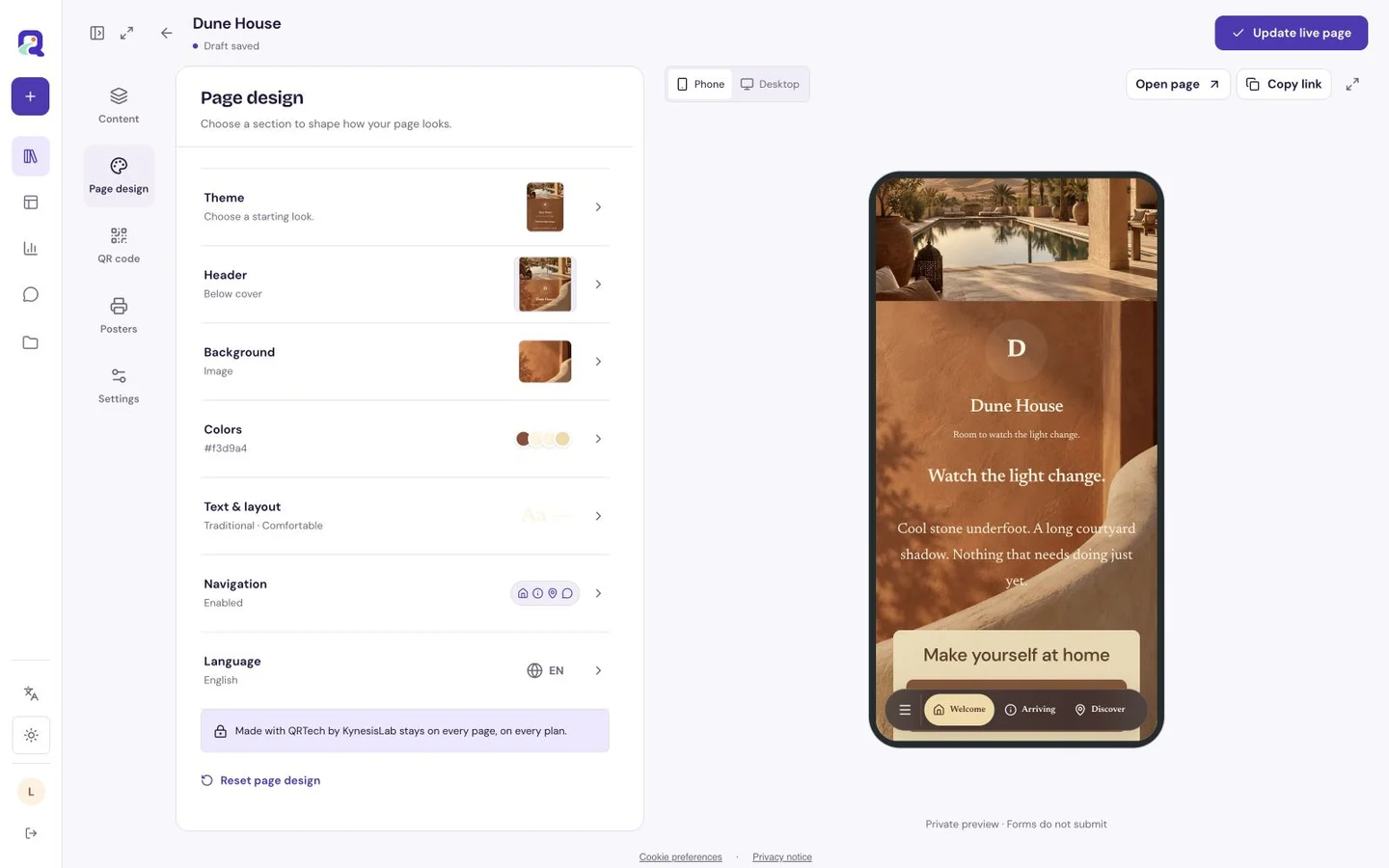
Start with the setup wizard.
Open Create with your AI in Settings. The wizard gives you instructions to copy into your assistant, including a setup guide it can read. Follow the steps together; you do not need to write code.
- Copy the setup instructions and paste them into your AI assistant.
- Follow the wizard to connect your account and choose what your assistant can access.
- Ask your assistant to check the connection.
- Describe the page or change you want, then open the result in QRTech.
Ask for a page. Refine the details.
Your connected assistant works with native QRTech content. It can help create pages, arrange blocks, change the design and update existing work within the permissions you choose.
- Build a menu, guest guide, creator page or a simple QR destination.
- Use page blocks such as text, images, galleries, menus, forms and visit counters.
- Adjust themes, colors, typography, backgrounds, spacing and QR appearance.
- Work with your uploaded files, folders, posters and analytics when you allow access.
Your account. Your choice of access.
Sign in to QRTech to set up the connection. Give your assistant access only to the parts of your workspace you want it to use. You can disconnect it from Settings. Your QRTech password does not belong in an AI conversation.
Ask for a private draft first, then check the content and design in the editor. Tell your assistant when you want to publish or change a live page. A successful tool call is not the same as checking how the page looks.
Questions, answered.
What is MCP?
MCP is a way for an AI assistant to use tools from another service. Here, it lets your assistant work with your QRTech account instead of only describing what you could create.
Can I use any AI assistant?
Your assistant needs to support MCP connections. Start with the setup wizard to check compatibility and follow the instructions for your assistant.
Can I edit the result myself?
Yes. Your assistant creates native QRTech content that you can open and edit in the usual editor.
What happens when my Premium access ends?
The MCP connection stops working until you have an eligible plan again. Your pages and uploads follow the same plan and retention rules as work created in the editor.