
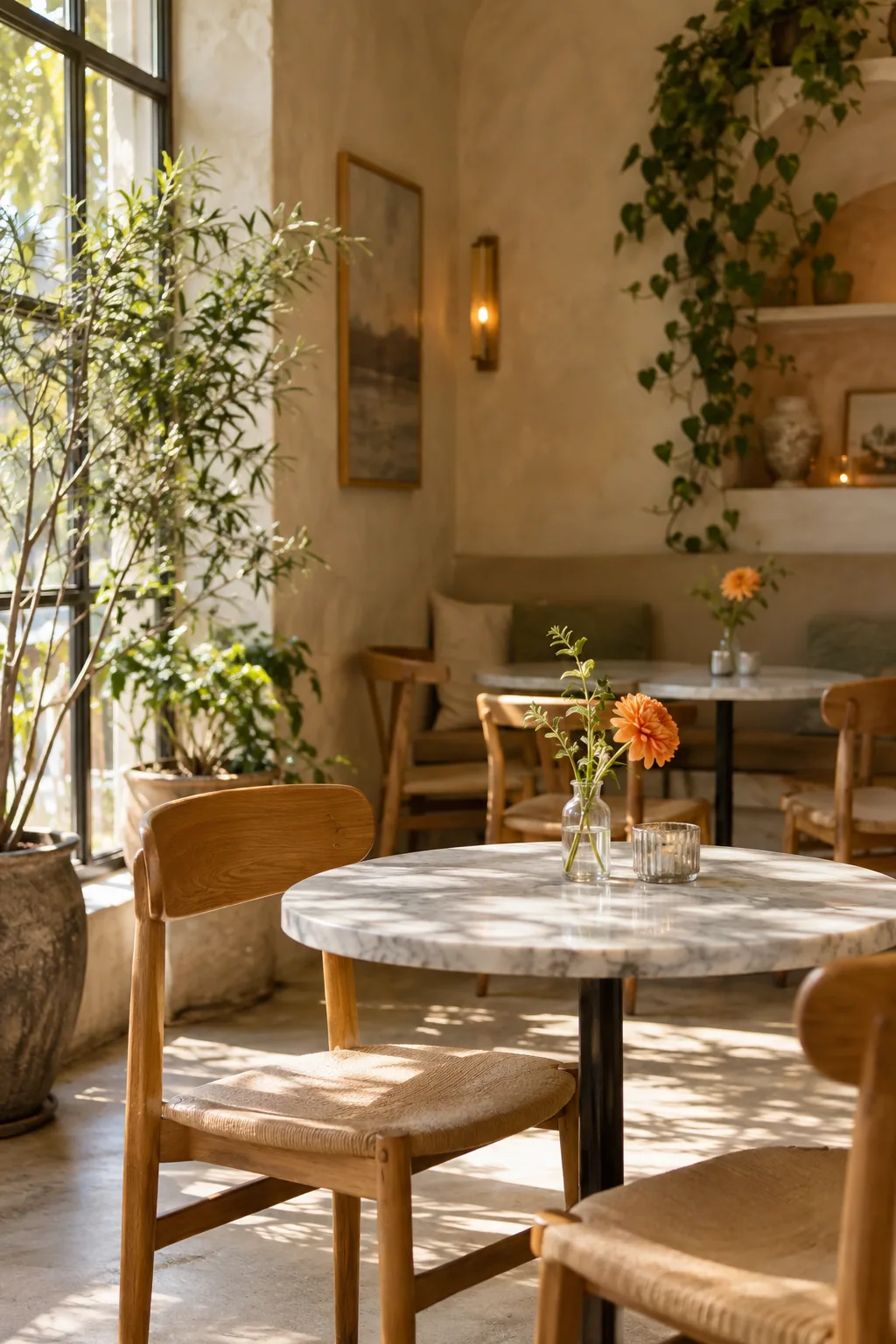
A practical example
A fictional café called Sunday Club could group breakfast, drinks and afternoon dishes so a diner can find a category without reading one long image.
Make the scan useful
Keep dish names, descriptions and prices current. Put allergen or service information where diners can find it, and verify it with the kitchen before publishing.
- Create menu sections and enter real dish information.
- Preview the diner view on a phone.
- Publish, scan a table-sign proof and review it after menu changes.
What to check before sharing
A QR menu presents information; it does not take orders, reserve tables or guarantee ingredient availability. The existing restaurant guide provides wider service and design advice.
Can I update a menu after table signs are printed?
You can update the hosted menu under the normal save and publication rules. Check the published page after each change.
Does a menu take payment or orders?
No. Use your existing ordering and payment process; the QRTech page helps diners read the menu.