Build it in QRTech
Start with your own content, then check the published page as a visitor. These steps use the current visual editor.
- Create a custom page. Use text blocks for the full date, timezone, venue and programme; add a Premium calendar or location block when useful.
- Link to your existing ticket service if needed. Check arrival instructions and times with the organiser before publishing.
- Preview the mobile page, publish, and open its shortlink. For print, download the connected QR code or use Premium Poster Studio, then scan a physical proof.
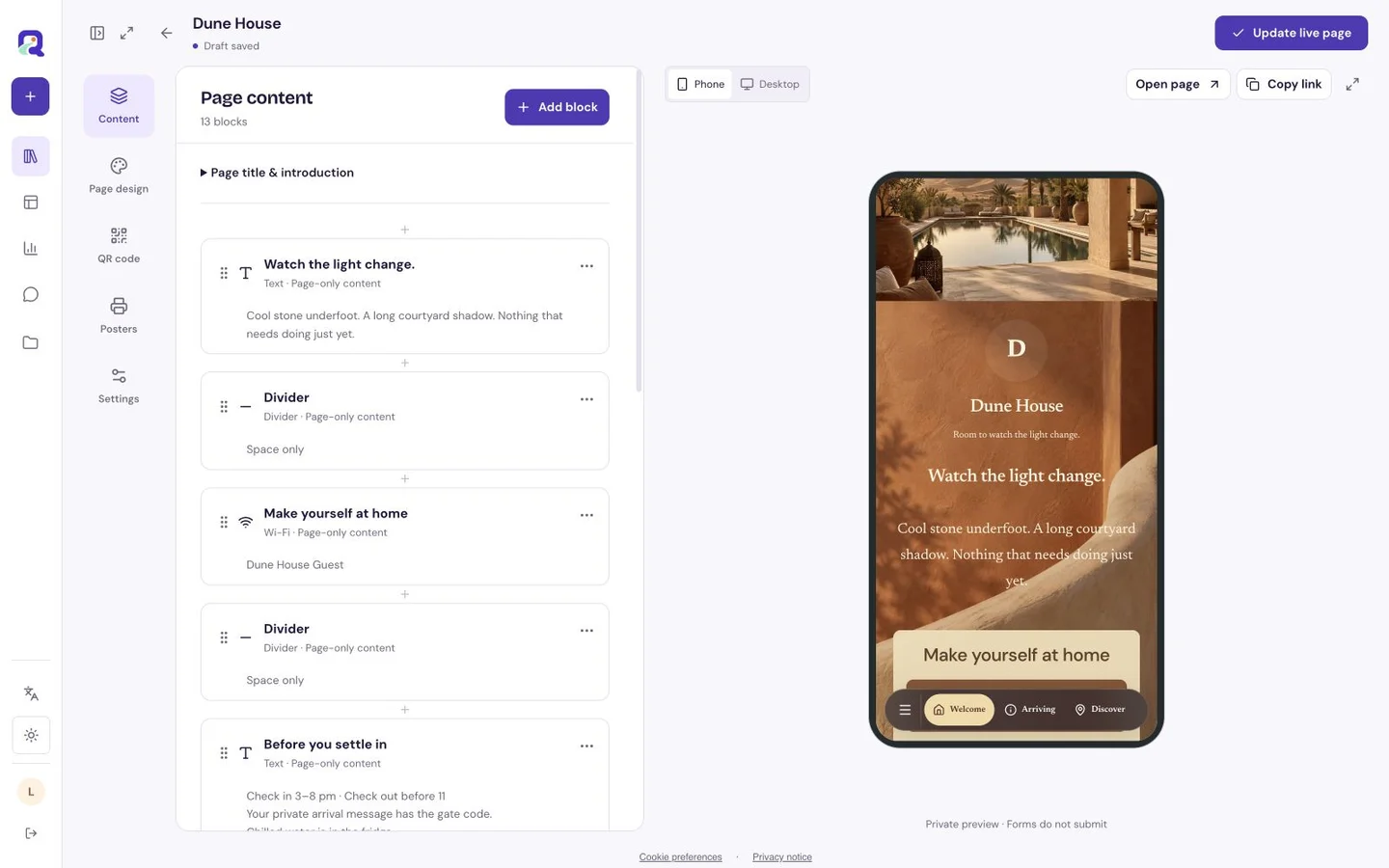
Give the date and place their own space
Open with the event name, full date, arrival time and venue. Distinguish doors opening from the first performance or activity. If an event spans several days, say which parts happen on which day. Include the timezone when people may be planning from somewhere else.
Follow with the main reason to attend and the next useful action. That could be viewing the programme, asking a question or following a link to an existing ticket service. Label external ticket destinations clearly.
Build a programme people can skim while standing
Use text blocks with consistent times and short activity names. Group a long programme by day or space. An image can give the venue context, while a Premium location block can support directions and a Premium calendar block can offer an event to save.
Keep access information close to the programme: entrances, transport, toilets, seating, age requirements and anything a visitor should bring. State only arrangements your team has confirmed.
| Visitor question | Page content |
|---|---|
| When should I arrive? | Doors, first activity and last entry, where relevant. |
| Where is my next stop? | A clearly named room, stage or meeting point. |
| What if plans change? | A visible current notice and a contact route. |
Match the page to the gathering
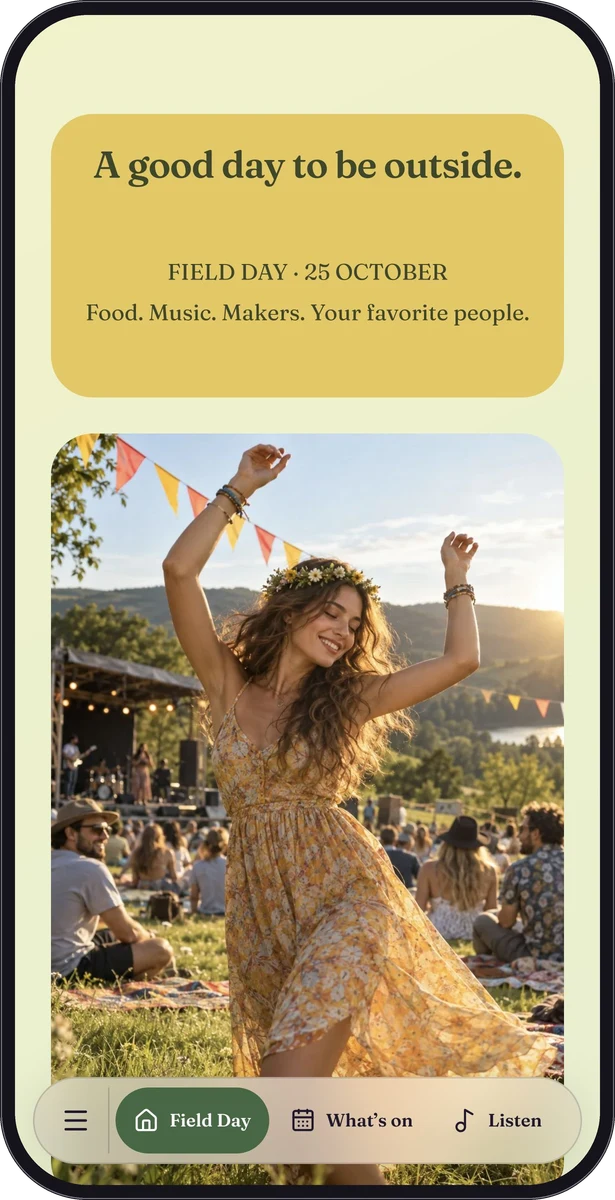
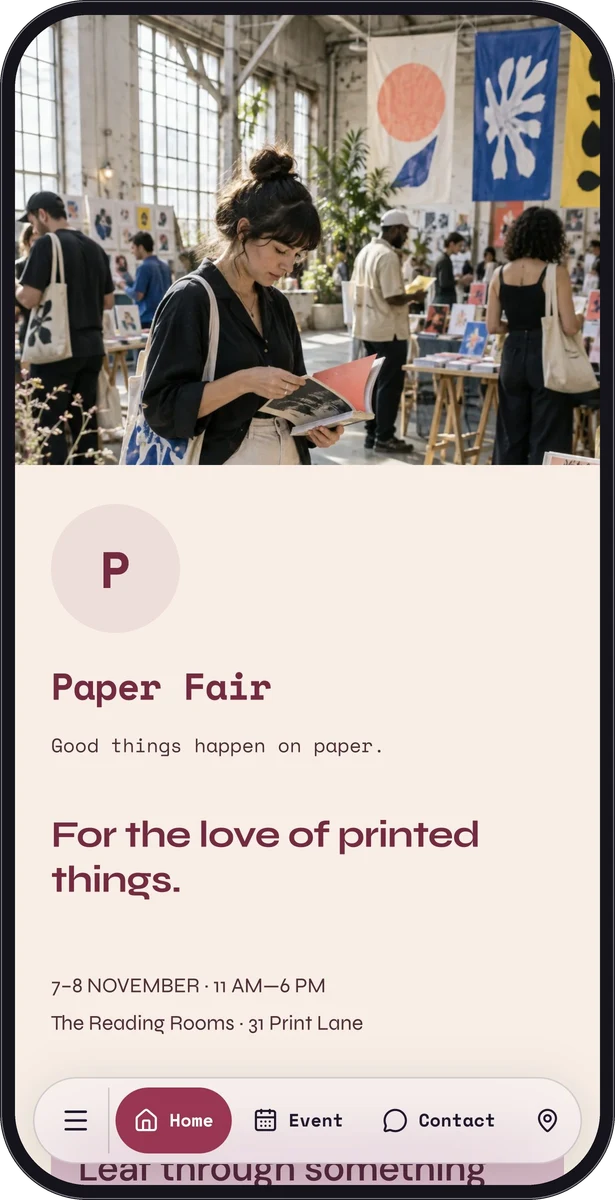
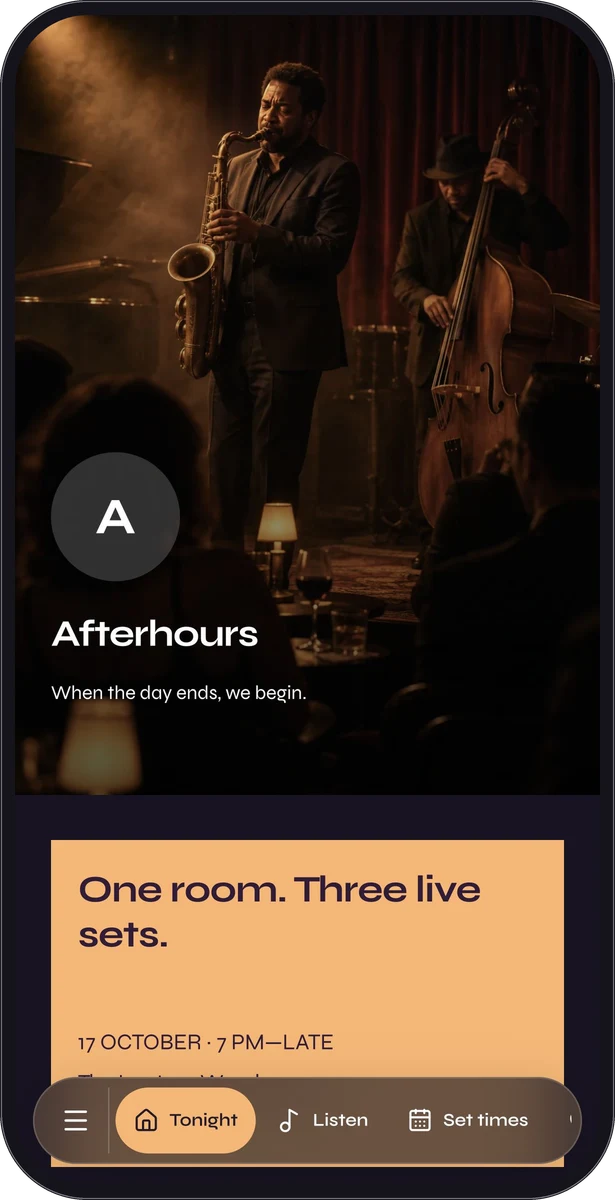
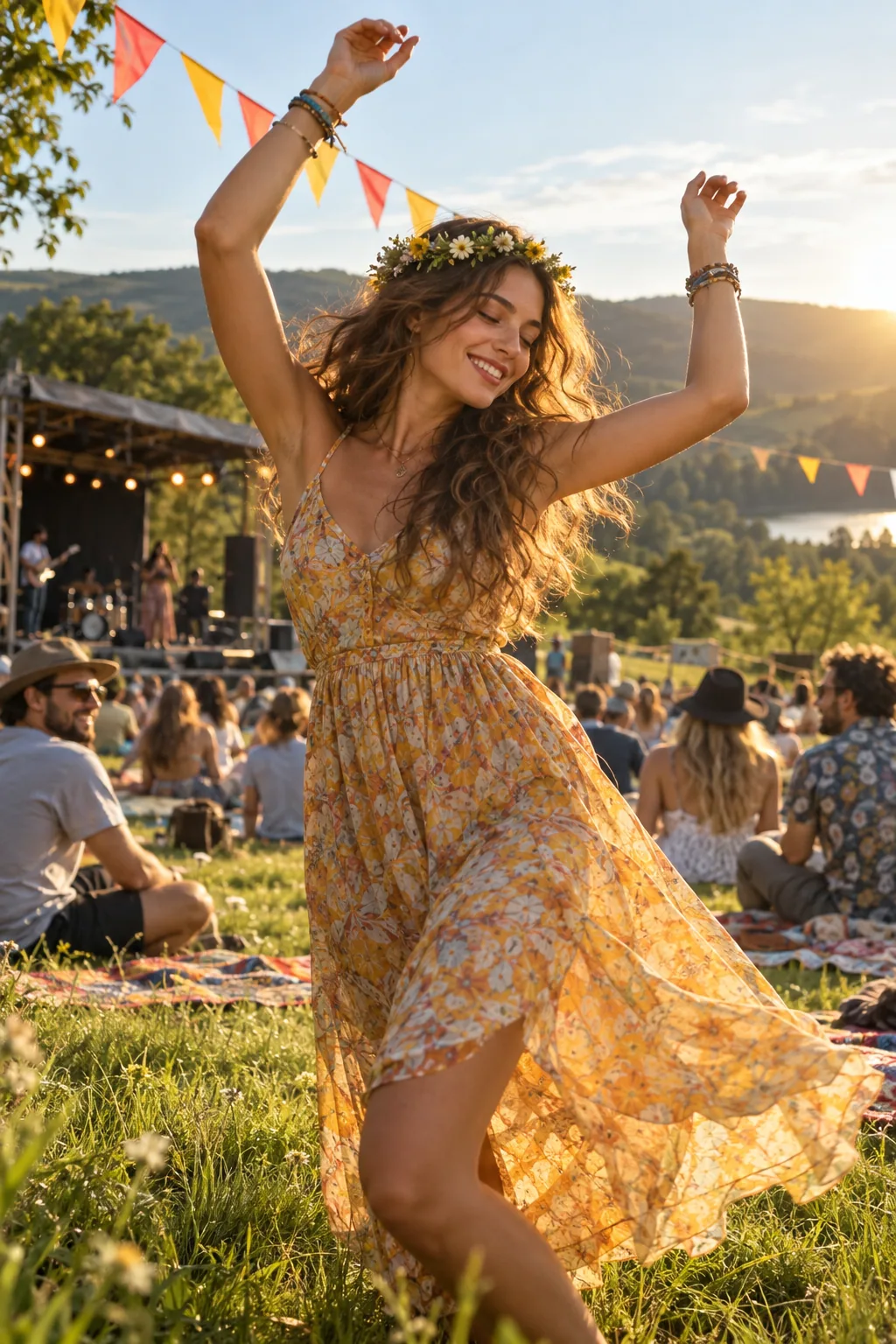
The fictional Afterhours sample uses a strong evening atmosphere and a timed music programme. Field Day has a lighter outdoor character, with activities and practical access details. Paper Fair shows how a weekend can be broken into manageable days.
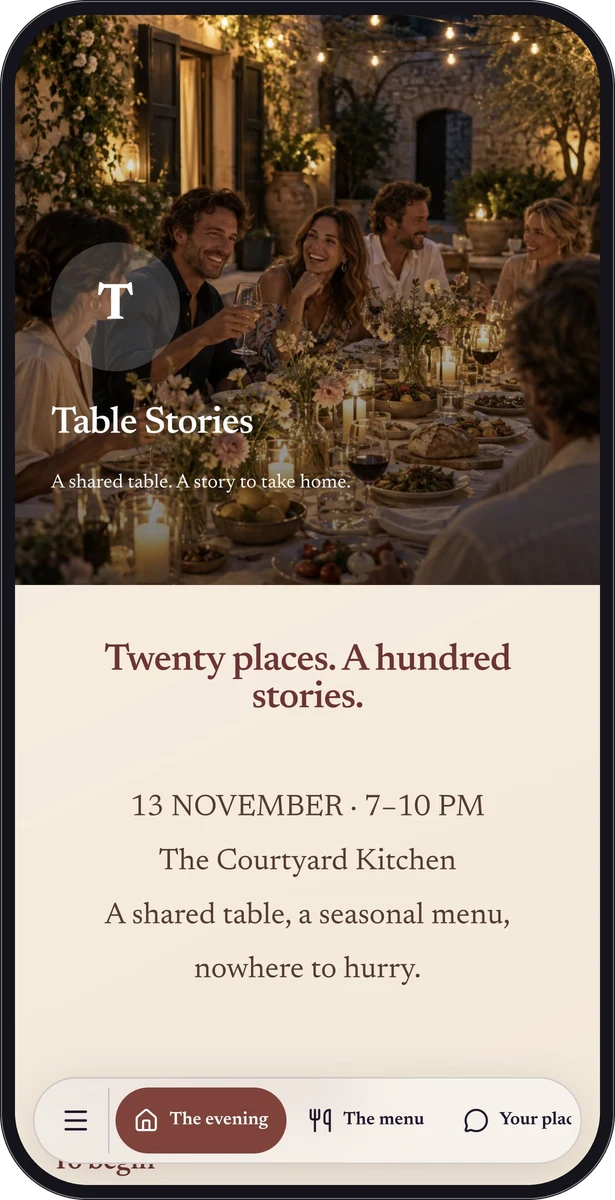
Use an expressive cover and a restrained reading area. Large event artwork is useful for recognition, but the date should also be readable text. Check contrast under bright outdoor light if visitors will use the page outside.
Let printed promotion lead to current information
Share the normal link in invitations and social posts. Put a QR code on posters with a specific invitation, such as “See the programme and plan your visit.” Premium Poster Studio creates downloadable SVG or PNG artwork; you arrange printing and placement.
Test each printed format from the distance at which people will use it. A flyer in someone’s hand and a notice behind glass need separate checks. Include a readable shortlink and enough event information for the print to make sense on its own.
Keep one person responsible for the final details
Build the essential custom page with eligible Free text, image and contact blocks. Add Premium location, calendar, forms or link lists when useful. Before sharing, check every time, external link and venue instruction against the organiser’s current plan.
Update the hosted page when the programme changes, then open the existing shared link to verify it. After the event, replace outdated arrival instructions with a clear closing note or the next relevant destination.
Questions, answered.
Does the page issue tickets or control entry?
No. Link to an existing ticket provider when needed. Ticket sales, capacity, admission and attendee check-in remain in that service or your own event process.
Will a saved calendar event update automatically?
Do not assume it will. A visitor may save a copy of the event details. Put important changes on the page and communicate them through your established attendee channels.