Understand what is inside the file
SVG can describe vector shapes, text and embedded images. Vector shapes can be redrawn at different sizes without depending on a fixed grid of source pixels. PNG stores a raster image and uses lossless compression; its pixel dimensions still limit how much detail is available when enlarged.
The distinction matters most when artwork is resized or moved between tools. An SVG can still contain a photograph with finite resolution, and a PNG can produce a good print when exported with enough pixels for its final dimensions. Judge the actual content and the next step in the workflow.
Match the export to the receiving tool
Ask what the next tool or printer accepts before building a handoff around a format. Preserve your original export even if the receiving workflow requires a conversion, then inspect the converted result.
- Avoid using a screenshot as the production master.
- Keep the destination and export date in the file notes.
- Review every format conversion before distribution.
| Need | Starting choice | Check |
|---|---|---|
| Resize a vector code in a design layout | SVG | The receiving tool preserves the artwork |
| Place artwork in an image-only system | PNG | Pixel dimensions suit the final use |
| Send a visual proof for review | PNG | Reviewers see the intended complete layout |
| Produce multiple physical sizes | SVG where supported | Embedded images and small type at each size |
| Follow a printer’s intake requirements | Their accepted workflow | Converted artwork and physical proof |
Calculate the pixels for a raster handoff
A PNG’s pixel dimensions and printed size determine its effective pixel density. As an arithmetic example, a 1200-pixel-wide image placed 4 inches wide has 300 pixels per inch. The same image placed 8 inches wide has 150 pixels per inch. Changing a resolution label alone does not create missing detail.
Use the printer’s requirements as an input, then inspect the code within the complete artwork. The overall poster may have many pixels while the QR occupies only a small part of them. Print a proof at the final size and check that the module pattern remains distinct. No one raster resolution guarantees every code or material.
Keep the appearance predictable after export
Check the background, margins, colors and any embedded logos when opening the export in the receiving application. Transparency can make a code appear on a different surface than the one you tested. Give it a plain light backing when the final substrate or surrounding image would otherwise show through.
Check text as well as the symbol. Font substitution, unexpected wrapping or a clipped caption can make the artwork misleading even when the code reads. The readable link should remain legible, and any border should stay outside the reserved quiet zone. Export again after making layout changes.
Export from Poster Studio and approve a proof
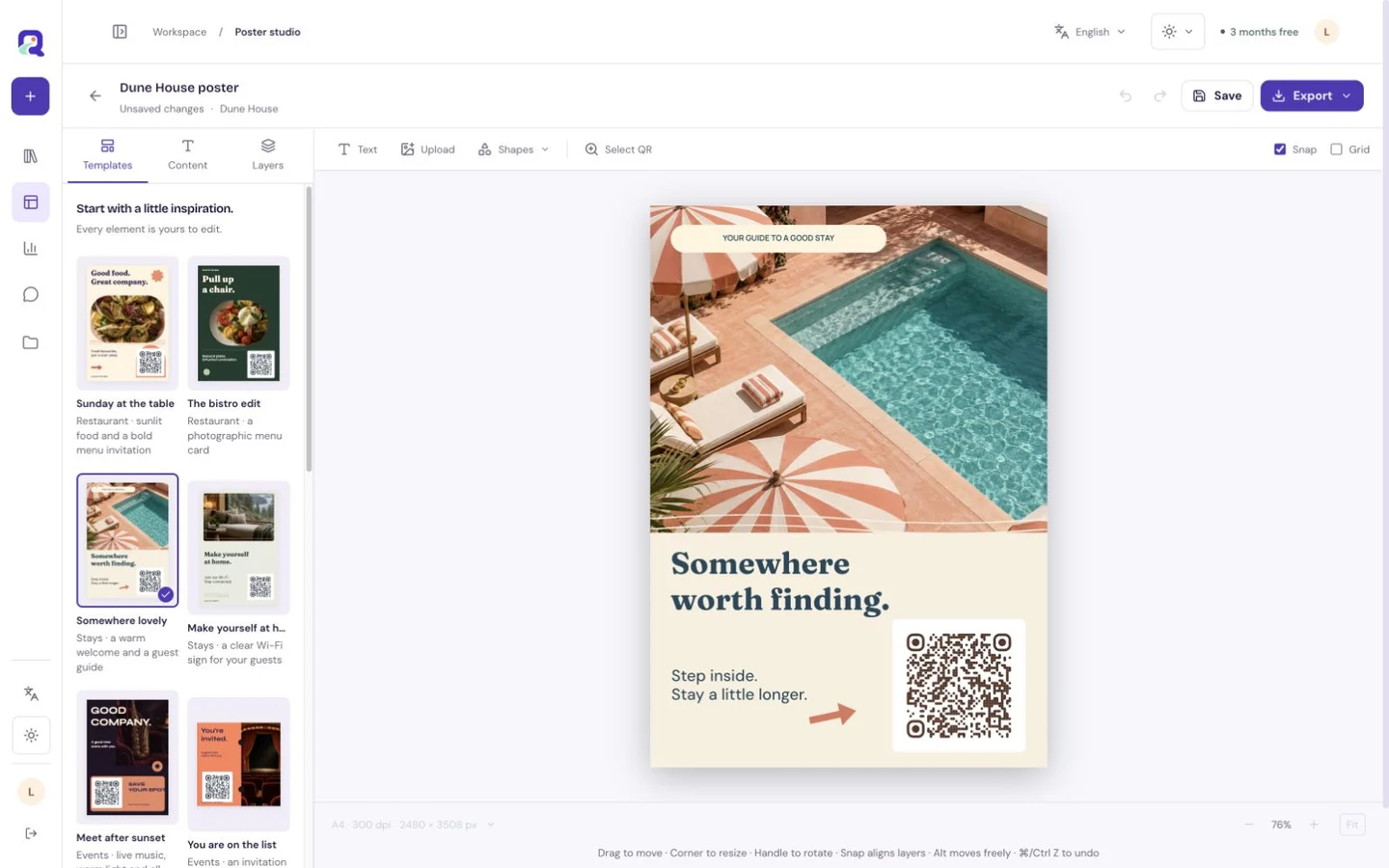
QRTech Premium Poster Studio provides downloadable SVG and PNG artwork. Open the studio, connect the intended resource and choose a layout suited to the placement. Confirm the destination, caption and shortlink before exporting. Physical printing and delivery are handled separately from QRTech.
- Choose the final physical placement and dimensions.
- Export the format accepted by your design or printing workflow.
- Inspect the file in that receiving tool.
- Make a physical proof with the intended material and finish.
- Scan the proof and follow its main destination action.
- Keep the approved export as the reference for replacements.
Questions, answered.
Does SVG guarantee a sharp print?
Vector shapes scale, but embedded images, tiny text, physical dimensions and the printer still matter. Inspect the complete output and test a proof.
Can a PNG be suitable for professional printing?
Yes, when the receiving workflow accepts it and the pixel dimensions suit the final artwork. Confirm requirements with the printer and test the result at actual size.