Build it in QRTech
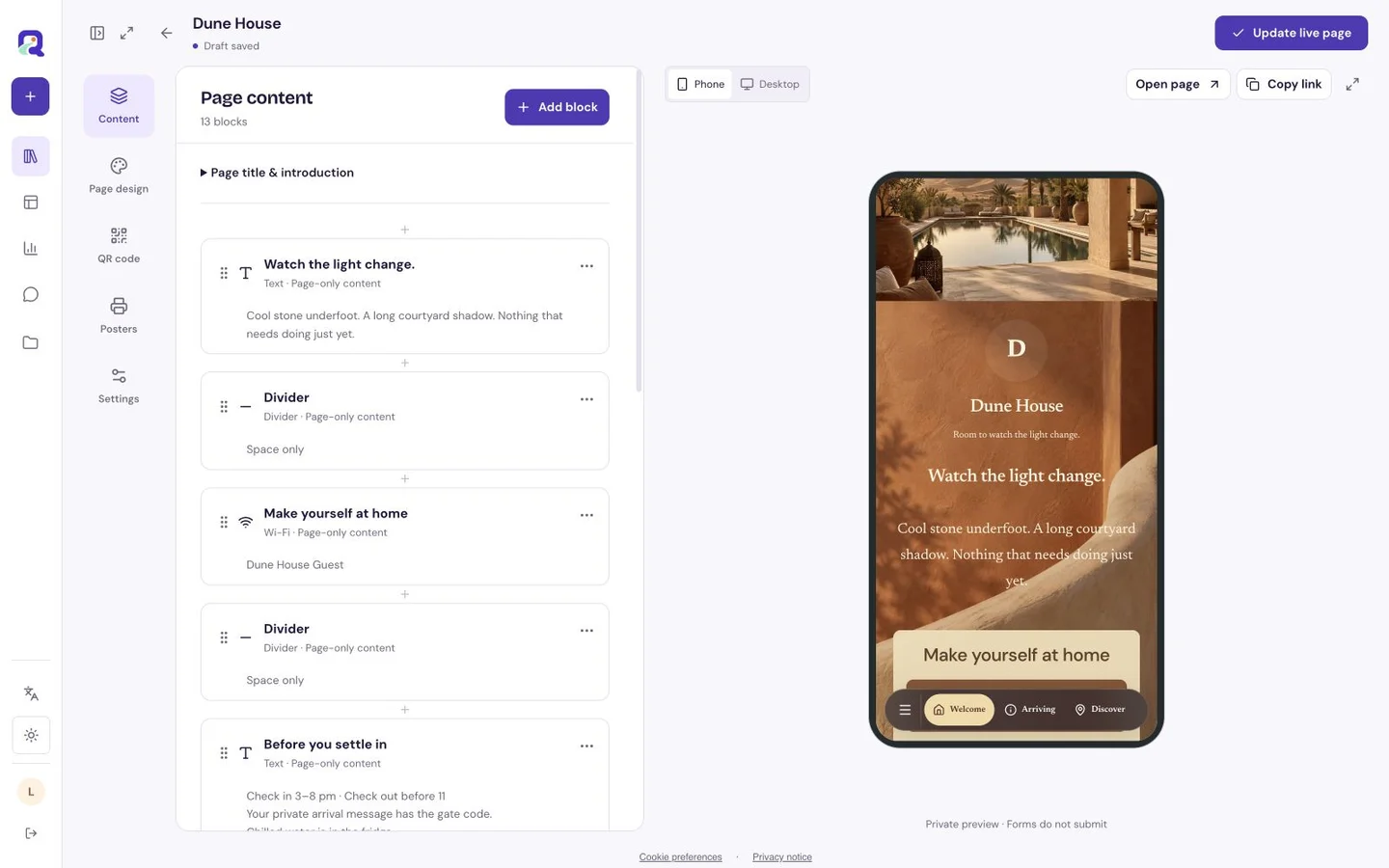
Start with your own content, then check the published page as a visitor. These steps use the current visual editor.
- Create a menu. Add categories, dishes, descriptions, prices and dietary details in the content editor.
- Set each dish to Available, Unavailable or Hidden. Unavailable dishes remain visible with a label; hidden dishes stay in your editor only.
- Preview the mobile page, publish, and open its shortlink. For print, download the connected QR code or use Premium Poster Studio, then scan a physical proof.
Begin with what people came to find
A hungry visitor should see the restaurant name, the kind of food and a useful menu without working through a long introduction. Put a short welcome above the menu, then leave the fuller story for people who want to read it. On a custom page, a contact action and practical visiting information can sit alongside the food.
| The moment | Useful information |
|---|---|
| Before the visit | Menu, opening information, address and a way to ask a question. |
| At the table | Dish descriptions, prices and clear dietary notes. |
| After the meal | Your social profile or a link to leave a review. |
Let the atmosphere show through
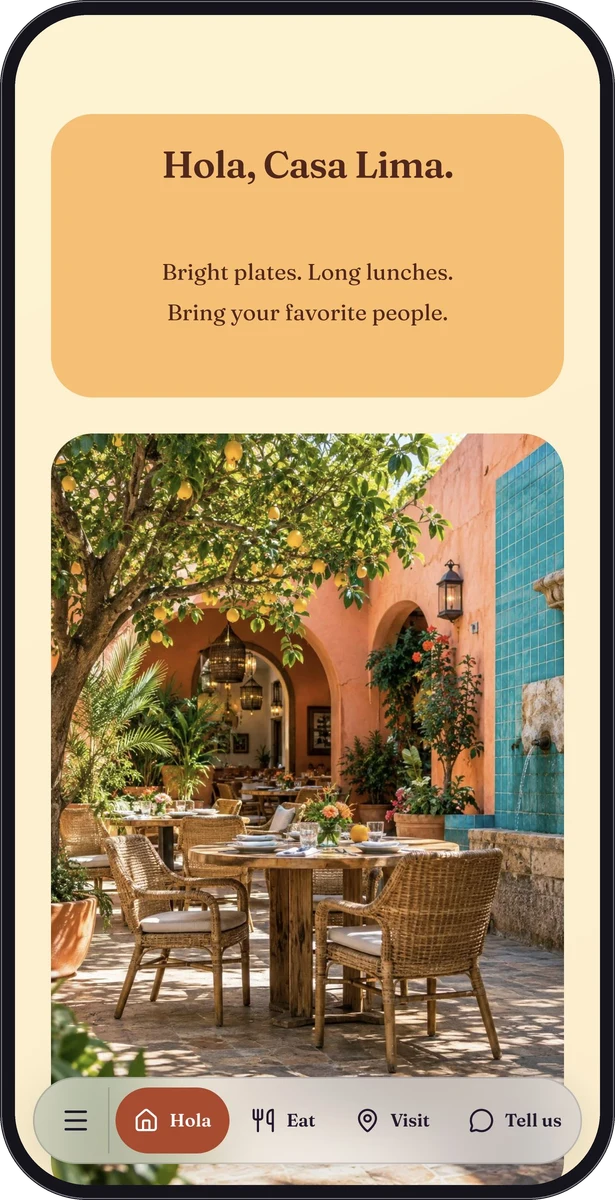
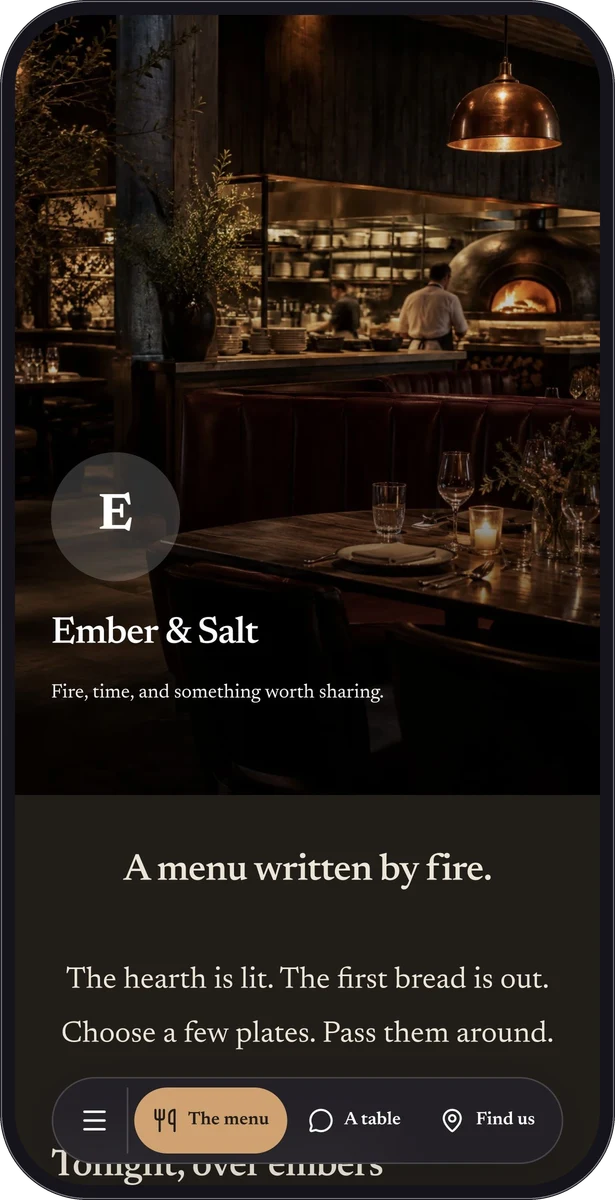
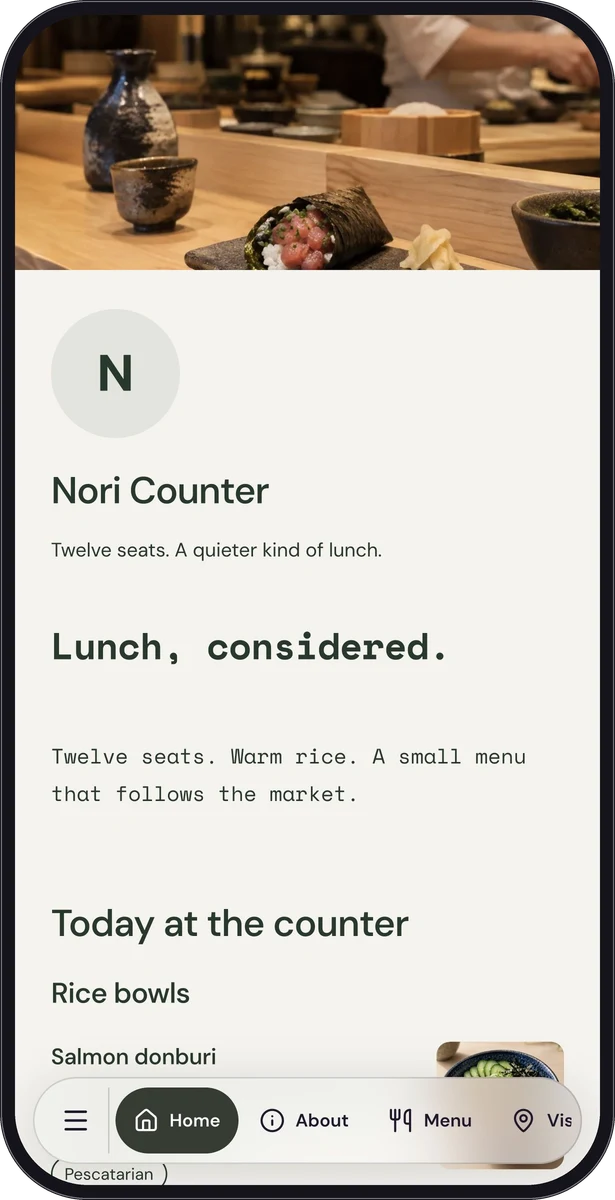
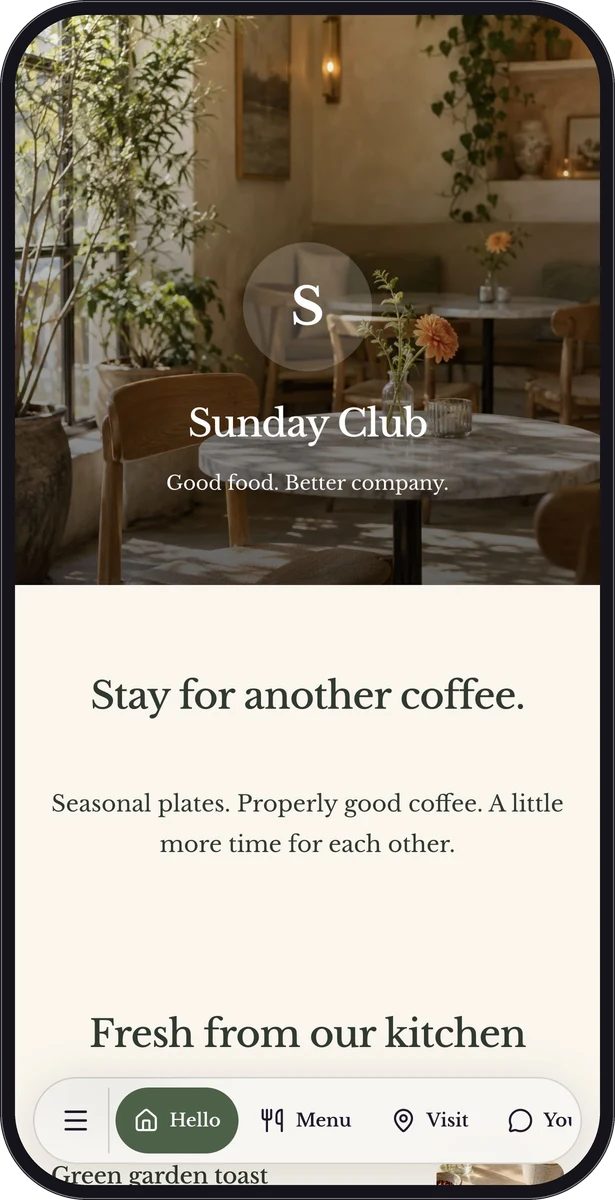
Sunday Club uses a warm café mood, while Casa Lima brings a brighter coastal feeling. Both are fictional demonstrations of what a restaurant page can look like. Compare their hierarchy and spacing before choosing your own cover, fonts and colors.
Keep food text easy to read against the background. One strong opening photograph can establish the room; item photographs should help distinguish dishes. Preview long names and descriptions on a phone, including the cheapest and most detailed items.
Put the same page within reach
Add the page link to your social profile, website or email. For the room itself, use a table sign or a small counter display with a direct invitation such as “Explore the menu.” Premium Poster Studio can turn a linked QR code into downloadable artwork for your printer.
Scan a printed proof in the actual dining light. Position it away from reflections and spilled drinks, and print a readable shortlink as another way to reach the page. The page needs an internet connection, so keep your usual way of helping diners available.
Make updates part of preparing for service
Choose who checks prices, dish availability and visiting information before service. Update the published page behind its existing link when the menu changes, then open that link to check the visitor view. A hosted page can change without replacing every sign that already points to it.
Keep essential allergy conversations with your team. Written dish notes provide context, but your staff still need to confirm what can be prepared for a particular guest.
Questions, answered.
Can diners order or pay on the menu page?
QRTech presents your menu and contact information. Ordering, payments and reservations need a separate service; you can direct visitors to an existing destination where appropriate.
Do I need a QR code to share the menu?
No. A normal page link works in messages, social profiles and websites. A QR code is another entrance to that same hosted page.