Size the small squares, not just the outside box
The small squares are modules. DENSO WAVE explains that physical size depends on module size and symbol version; more encoded data can require more modules. At a fixed outside width, a denser symbol leaves less room for each module. Printer capability and the reader’s resolution both matter.
Begin with the space and reading distance available. A person holding a label can approach it closely, while a wall sign may need to be read from farther away. Print several sensible sizes on the intended stock and test them in position. Select a comfortably readable proof rather than the smallest one that worked once.
Protect the quiet zone before arranging the artwork
A standard QR code requires a clear quiet zone at least four modules wide on every side. This space surrounds the code and is part of the area you must reserve in the layout. Do not place captions, borders or decorative shapes inside it.
For a worked layout example, a 33-module symbol using 1 mm modules occupies 33 mm before its margin. Adding four modules to each side reserves a 41 mm square overall. This illustrates the calculation, not a recommended size for every application; the final choice still needs a print and scan test.
Review contrast and the material together
Use dark modules on a light, plain background as your starting point. DENSO WAVE recommends black on white and cautions that color combinations, transparent materials, glare and distortion can interfere with reading. A solid light backing helps separate the symbol from whatever is behind the material.
Plan the placement before ordering. Avoid a fold through the symbol, a seam that interrupts it or a curve that forces the phone to see only part of it at once. Check a laminated proof under the actual lights. A code can look attractive on a flat design file yet be awkward to approach on the finished object.
Run a proof that matches the intended encounter
Test the finished artwork, including its caption and surrounding graphics, using the intended print process. Keep a readable shortlink outside the quiet zone as another way to open the destination. Continue beyond the camera prompt to check the actual page.
- A repeatable, comfortable scan is more useful than one lucky read.
- Recheck when you change the logo, stock, laminate or physical size.
- Print at final size without an unexpected fit-to-page reduction.
- Place or fold the proof as it will appear in use.
- Try several phones at the expected distance and viewing angle.
- Check ordinary, dim and reflective lighting relevant to the placement.
- Open the destination and test the main action.
- Record the file, dimensions and material of the approved version.
Keep the destination and the artwork connected
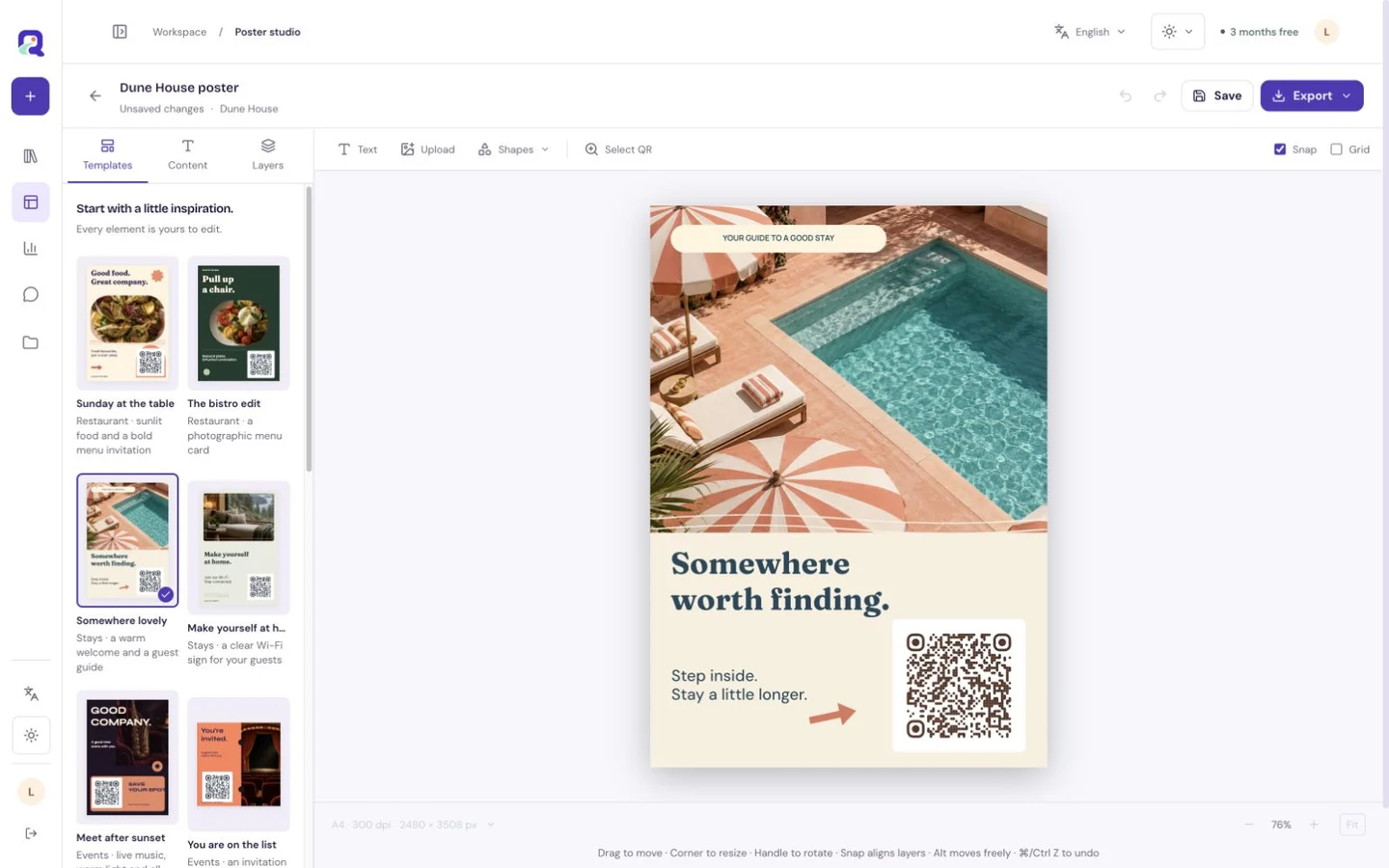
QRTech’s code editor prepares the code appearance; Premium Poster Studio combines it with printable artwork and exports SVG or PNG. QRTech provides downloadable files, not physical printing or delivery. Give the printer the approved file and confirm any finishing requirements directly.
Keep the existing hosted resource active when updating page information after distribution. Native Wi-Fi credentials are different: a changed password needs a new code and replacement copies. Resource, storage and retention rules still apply to hosted destinations, so include a periodic link check in the life of the printed material.
Questions, answered.
Is a two-centimetre code always large enough?
No. Distance, density, printing, material and camera capability vary. Use the final placement and a physical proof to choose a size that reads comfortably.
Can I trim away the white border?
Keep the required four-module quiet zone around the standard QR symbol. If the layout is too tight, rearrange the surrounding content rather than trimming that clear space.