Start with where the visitor will stop
Picture the encounter before choosing a template. Is someone seated at a table, waiting at reception, walking toward a venue or holding a package? A design that works at arm’s length may not give a passer-by enough reason or room to stop.
- Choose a place people can approach without blocking a queue.
- Keep the code visible after the table is set or the package is assembled.
- Match the information to the object’s expected lifetime.
| Format | Useful setting | Design priority |
|---|---|---|
| Poster | Entrance, event venue or display wall | A clear benefit visible before approaching |
| Table sign or tent | Dining table, counter or guest room | A useful action within comfortable reach |
| Sticker or label | Packaging, equipment or takeaway item | A durable placement tied to the object |
| Small information card | Welcome pack or handout | A readable link people can keep |
Write the reason to scan in ordinary words
“See the menu” or “Open your guest guide” tells someone what they get. Add a short supporting line only when it resolves a question, such as “Arrival, Wi-Fi and local notes.” A generic instruction to scan gives less reason to act.
Keep the destination consistent with that promise. A feedback sign should reach the appropriate feedback route; an event poster should make programme and venue information easy to find. Put a normal shortlink on the artwork as another way to open the page. Use the business or event name so the destination feels recognizable.
Reserve space for the code before adding decoration
Choose the physical code size around distance, data density, output quality and the intended material. There is no universal minimum dimension. Preserve a four-module quiet zone on every side of a standard QR code, and keep the headline, shortlink and frame outside it.
For a folded tent, check the visible face after folding. Keep important content away from the fold and the area concealed by a holder. For a sticker, test the actual object rather than a flat sheet; seams, curves or a difficult viewing angle can change the practical experience.
Connect the artwork to the right kind of resource
A restaurant sign can open a menu page. A reception sign can open directions or visitor information. A guest-room Wi-Fi sign can use the native Wi-Fi code for the immediate connection task. In that case, a changed network password requires a new symbol and replacement print.
Hosted QRTech pages and redirect destinations use retained URLs when you keep the existing resource. Update their content as needed, while checking resource status, plan access and retention rules. For reusable physical artwork, avoid printing details likely to change in the headline; put those details on the maintained destination instead.
Build the artwork, then test it in place
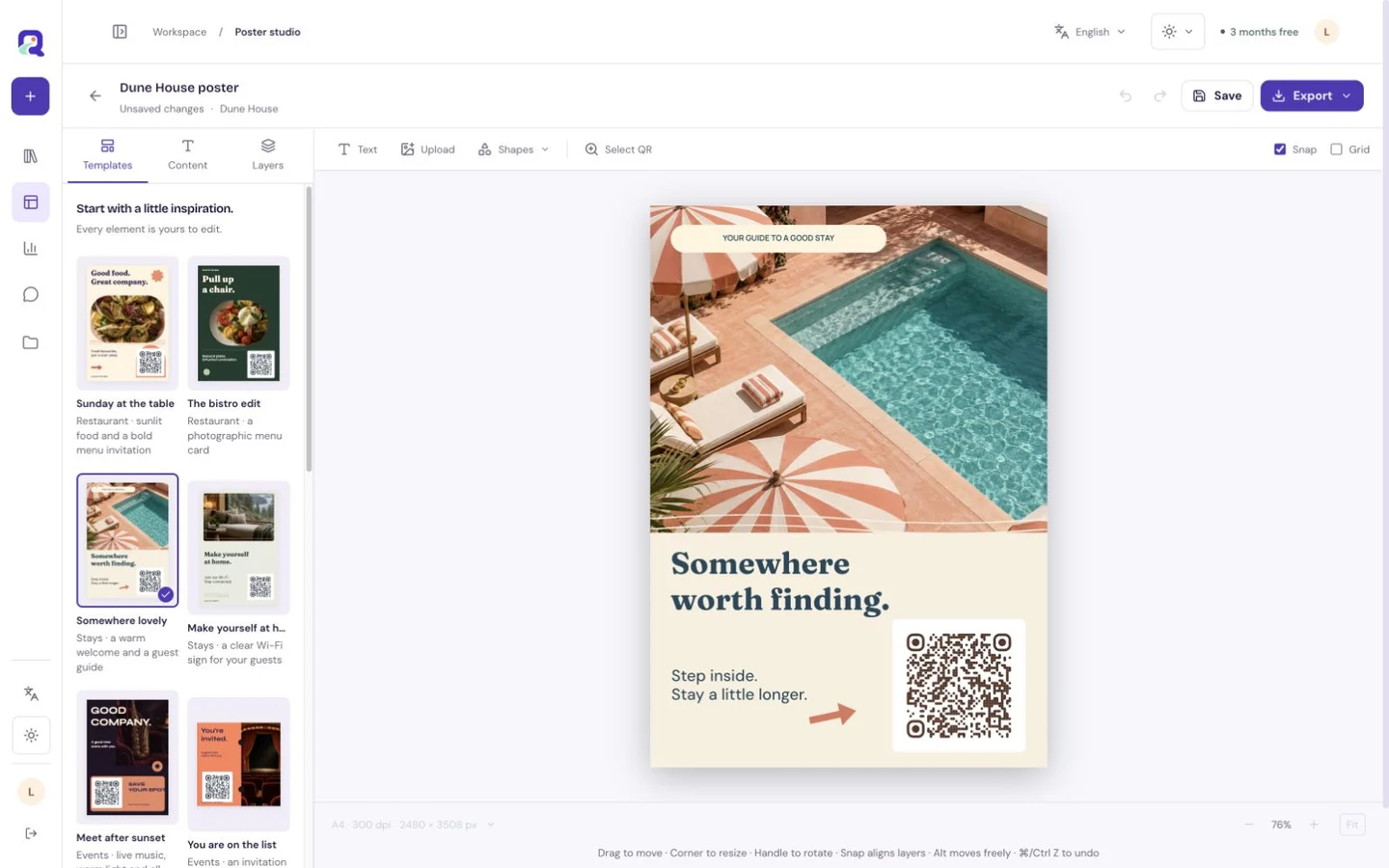
Premium Poster Studio creates downloadable SVG and PNG artwork for your own printing workflow. Choose an available layout, connect the correct resource and adjust the copy. QRTech does not supply physical signs or delivery; confirm production details with your chosen printer.
- Choose one clear visitor task and write its action label.
- Set the intended size and leave room around the QR symbol.
- Export the artwork and inspect the full file.
- Print, fold or apply a proof exactly as it will be used.
- Scan from realistic positions using more than one phone.
- Save the approved file and check installed copies periodically.
Questions, answered.
Should a table tent show several QR codes?
Start with one clear task per visible face. Several similar codes create a choice visitors may not understand; a page can often organize the related information after one scan.
Does QRTech print and ship the artwork?
No. Poster Studio provides SVG and PNG downloads. You arrange printing, material, finishing and delivery through your own workflow.