Separate the address from the content
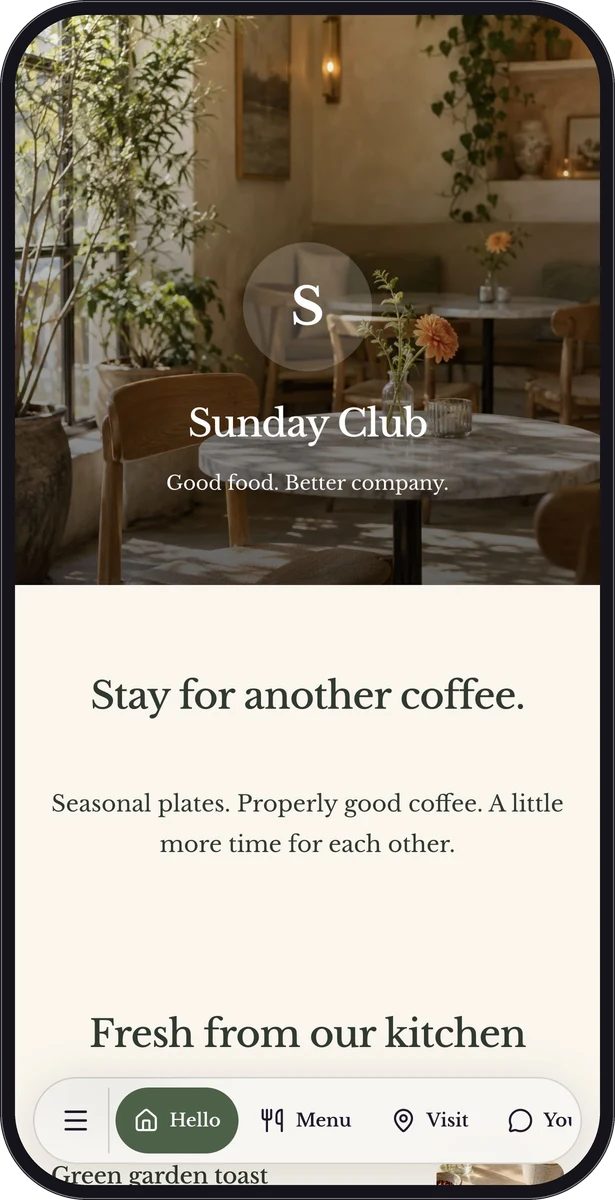
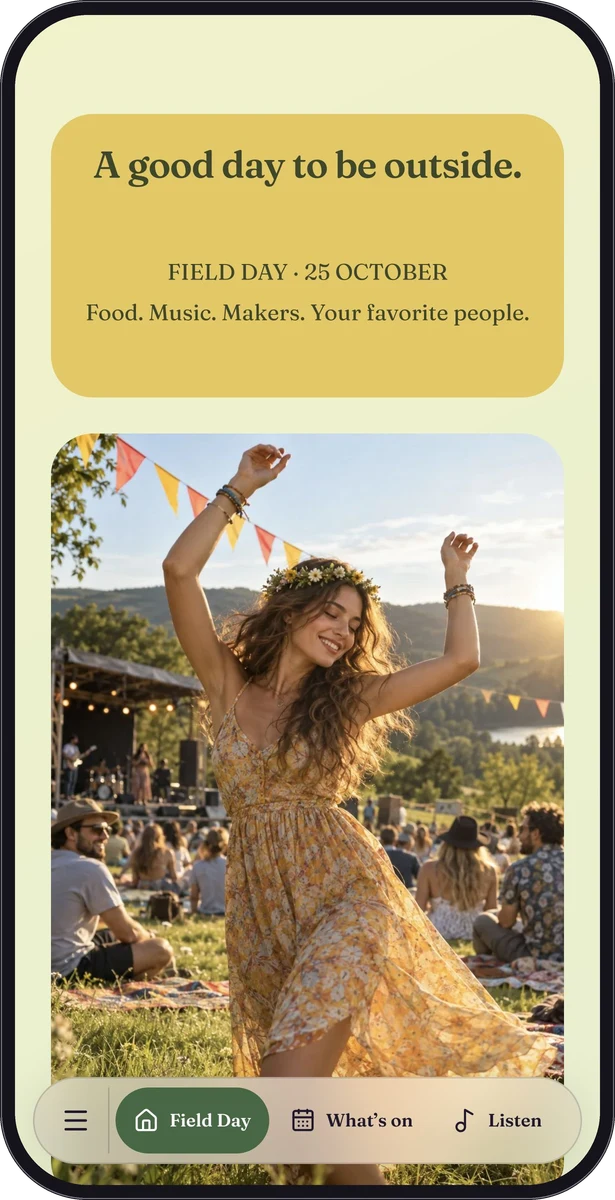
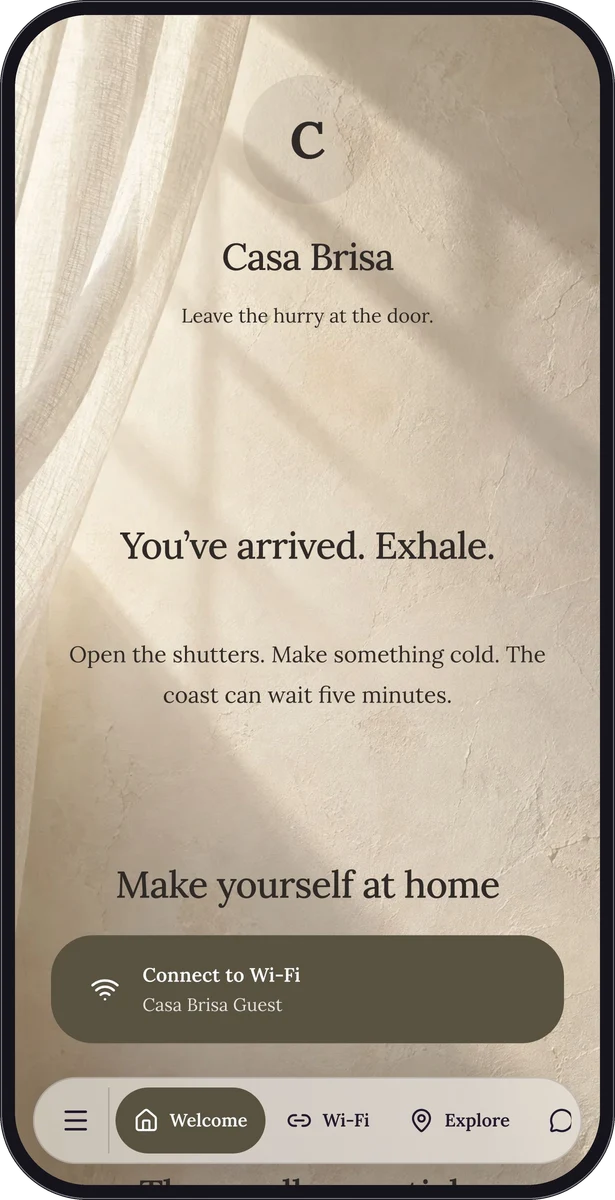
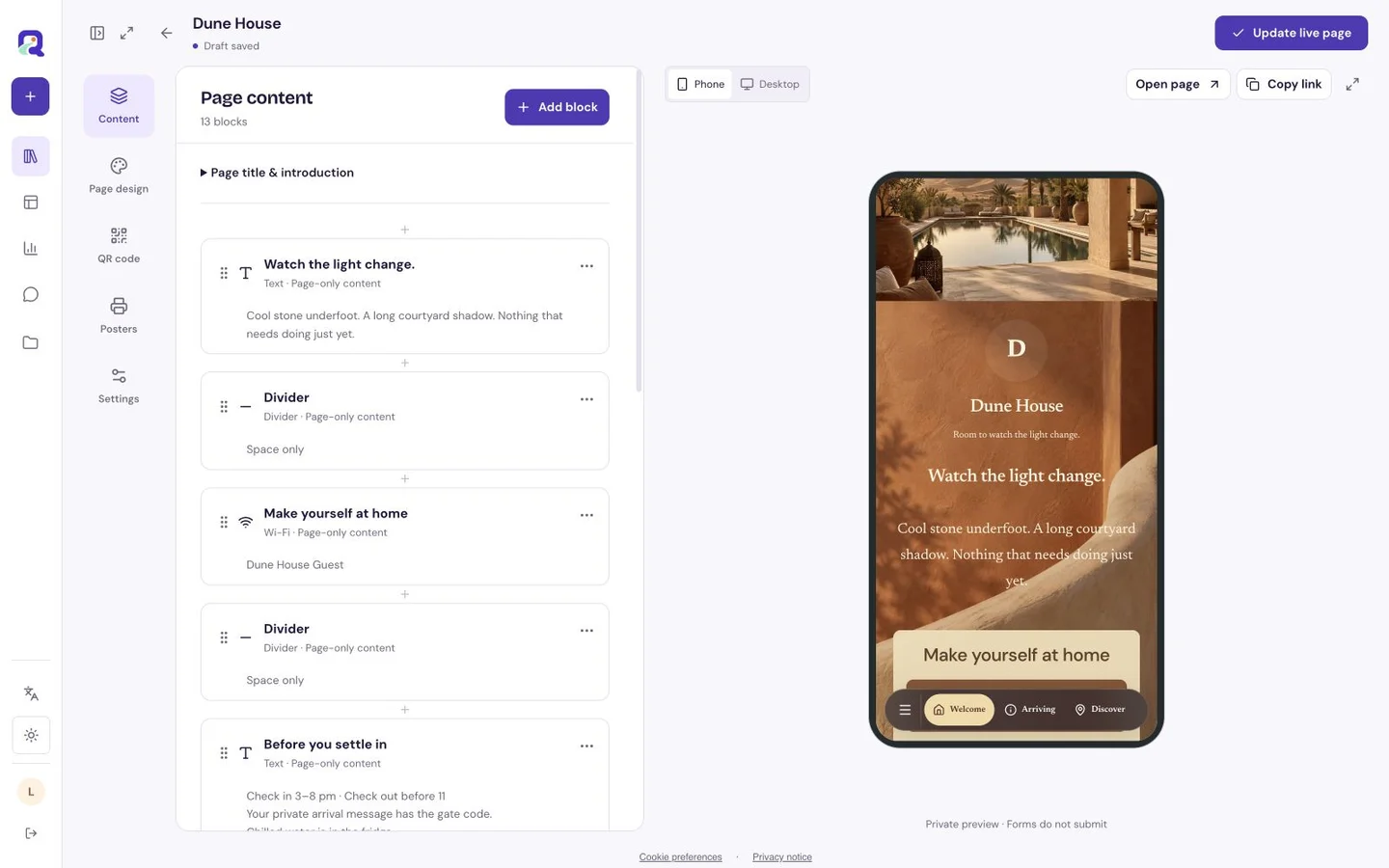
A shared page has an address and the information shown at that address. Editing a menu description or changing an event timetable changes what visitors find when they open the existing page. It does not require a new code simply because the content has changed.
This depends on keeping the original resource available. Creating a replacement page creates another destination; deleting the original can break the route printed on earlier material. Keep the exact shared link in your project notes and test that link, rather than relying only on an editor preview of the newest page.
Know which changes affect old copies
Use the existing resource for routine content edits. Changes to the printed artwork or to a native payload are different: saved images and physical copies continue to contain what was exported earlier.
| Change | What old copies do | Your next step |
|---|---|---|
| Edit text, images or menu content | Open the updated existing page | Review the public page |
| Edit an existing URL destination | Use the retained redirect route | Test the final external destination |
| Change the QR color or logo | Keep the old printed appearance | Export and reprint if appearance must change |
| Change native Wi-Fi credentials | Still contain the old credentials | Generate a new code and replace copies |
| Replace or delete the original resource | May lose the intended destination | Check all previously shared links |
Use a short update routine
Draft the new wording before changing something time-sensitive. Check dates, contact details and external addresses as one set; an updated heading above an old booking link can be more confusing than an obviously outdated page. After saving, open the actual public route from another browser session.
- Keep a simple note of the change date and purpose.
- Ask a colleague to check high-visibility event or arrival information.
- Identify the existing resource using its saved shared link.
- Edit related details together, including button labels and destinations.
- Check images and media that the update depends on.
- Open the original link and test every changed action.
- Scan one previously printed copy when the update affects a live placement.
Include availability in the maintenance plan
A stable address is useful only while the destination remains accessible. Paused, draft or dormant resources do not behave like active public content. Premium blocks and shared passwords depend on plan access; resource, storage and retention limits also apply. Review the current account state before committing to a long print run.
When an event ends, consider updating its existing page with a clear closing message and a useful next destination. Do not assume every old visitor wants to see an unrelated new campaign. Keep the purpose recognizable, especially when the original code appears on packaging, invitations or material that people may save.
Decide when an update needs a new message
Editing a page makes the new information available on the next visit. It does not mean everyone who previously read it knows something changed. A moved venue, changed arrival time or cancelled activity may need a direct message through the channels you normally use.
Use QRTech for the current source of practical information, then point the message to that same page. For ordinary improvements, such as a clearer photo or corrected description, checking the page may be enough. Start with a custom page when you want several editable answers behind one retained destination.
Questions, answered.
Will editing the QR design change a code already printed?
No. The printed design stays as it is. You only need replacement artwork if you want the new appearance on the physical copies.
Does a retained URL guarantee permanent availability?
Free QR codes do not expire. Keep the original resource published to preserve its shared destination. Resource limits and Premium access are separate from expiry.